
Best Gaming Mouse Settings for Better Aim and Comfort
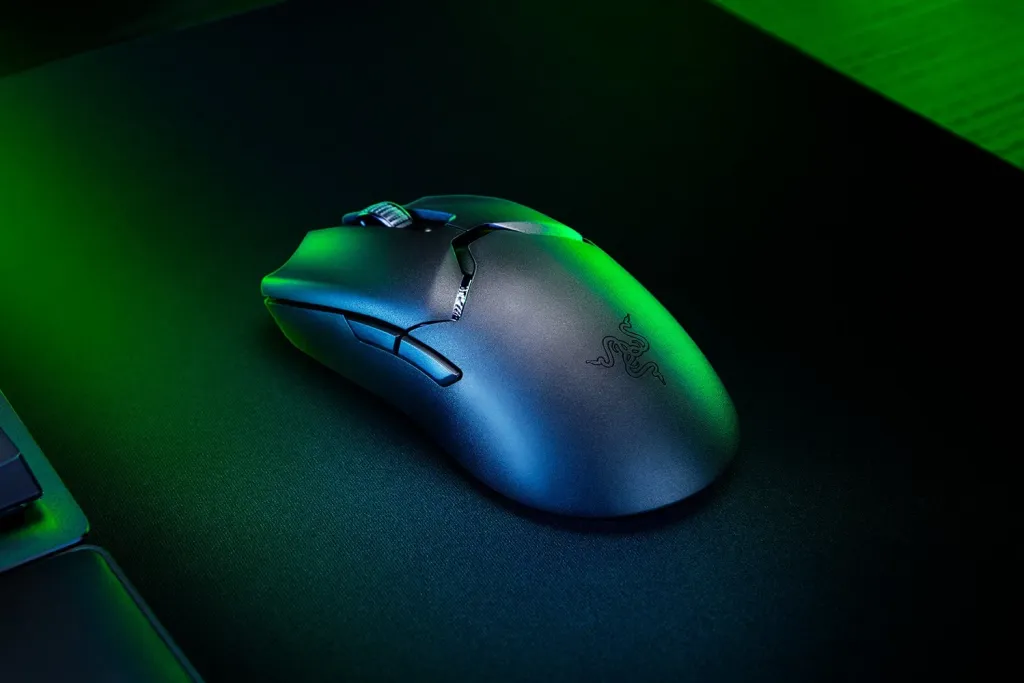
279 views
Your mouse can feel completely different from one game to the next.
One minute, your crosshair tracks perfectly. Then you launch another title and suddenly every flick overshoots, tiny corrections feel twitchy, and your wrist starts getting tired after a few matches. Nothing is necessarily wrong with the mouse. Usually, several sensitivity layers are fighting each other.
DPI. Windows pointer behavior. Polling rate. In-game sensitivity. Raw input. Even the size of your mousepad.
The good news? You don't need a complicated “pro player” setup. A few deliberate changes can make aiming more predictable and your hands noticeably happier during long sessions.
This guide focuses on a practical baseline for competitive PC gaming, with examples from games such as VALORANT, Counter-Strike 2, and Overwatch 2.
Start with one stable DPI
For most players, 800 DPI is an excellent starting point.
1600 DPI is also perfectly viable, particularly if you prefer smaller physical movements or use a high-resolution desktop. The mistake isn't choosing 800 instead of 1600. The mistake is constantly changing DPI because one game feels slightly slow.
DPI means dots per inch: essentially, how many counts the mouse sensor reports for each inch of physical movement.
A useful starting range looks like this:
Play style | Starting DPI | Typical approach |
|---|---|---|
Low-sensitivity FPS | 400–800 | Large arm movements |
Balanced FPS | 800–1600 | Arm + wrist aiming |
High sensitivity | 1600–3200 | Smaller physical movements |
Desktop-focused setup | 1600+ | Faster cursor movement |
Don't get distracted by enormous sensor specifications. A mouse advertised at 20,000 or 30,000 DPI doesn't mean you'll aim better at that setting.
For example, the Razer Viper V4 Pro provides customizable DPI stages including 400, 800, 1600, 3200, and 6400, while the older Razer Viper supports a 16,000-DPI sensor and 1000 Hz polling. Those numbers describe hardware capability, not recommended competitive settings.
Pick one DPI and leave it alone for a week.
That single habit makes sensitivity testing much easier.
Fix Windows before touching game sensitivity
Windows can add another layer of mouse behavior that makes your setup harder to understand.
On Windows 11, open:
Settings → Bluetooth & devices → Mouse → Additional mouse settings → Pointer Options
For a conventional competitive FPS setup, use a neutral pointer-speed setting and turn Enhance pointer precision off.
Microsoft documents Enhance pointer precision as a pointer-behavior setting intended to improve accuracy for slower cursor movements.
The classic Control Panel scale is often described as 6/11, the neutral position. Windows 11's newer Settings interface uses a different-looking scale, so don't blindly copy a number from an old Windows 10 guide; focus on maintaining the neutral pointer-speed position.
Why bother?
Because you want your game to determine aiming behavior, not a desktop acceleration curve you forgot was enabled.
There is one wrinkle: games that use raw mouse input can bypass some of the normal Windows pointer processing. Microsoft specifically documents raw mouse input as a mechanism games can use to receive mouse movement independently of normal desktop scaling.
That distinction matters.
Raw input should be part of your FPS setup
Raw input is about consistency.
Instead of relying on the normal desktop cursor pipeline, a game can process the mouse's input data more directly.
VALORANT is a good example. Riot says the game has used Raw Input for mouse devices since launch. Its Raw Input Buffer setting changes the APIs used for processing that input and was specifically introduced to improve input-device processing, with particularly meaningful performance benefits for 8000 Hz mice. Riot later changed the setting so Raw Input Buffer was enabled by default.
So, for a modern VALORANT setup, don't copy an old guide telling you that Raw Input Buffer must be disabled. That advice is outdated.
For other games, look for settings named:
Raw Input
Raw Mouse Input
High Precision Mouse Input
Direct Mouse Input
The exact wording varies by engine.
And here's the annoying part: high-polling-rate mice can expose weaknesses in older game engines or software stacks. Razer explicitly recommends trying 4000 or 2000 Hz if a game struggles with a HyperPolling mouse, noting that some older engines weren't designed around very high report rates.
That's why “higher” isn't automatically “better.”
Choose a polling rate your PC can actually handle
Polling rate tells you how frequently the mouse reports its position to the computer.
Common values include:
125 Hz — 8 ms interval
500 Hz — 2 ms
1000 Hz — 1 ms
2000 Hz — 0.5 ms
4000 Hz — 0.25 ms
8000 Hz — 0.125 ms
1000 Hz remains a sensible baseline for almost everyone.
If you own an 8000 Hz mouse and a modern gaming PC, testing 2000, 4000, and 8000 Hz can make sense. Razer's own documentation, for example, lists mice capable of switching between 1000 Hz and 8000 Hz, while its HyperPolling technology is designed specifically for high-report-rate input.
But don't chase the smallest theoretical latency number while ignoring frame-time stability.
If 8000 Hz produces stuttering, unusual CPU usage, or a less consistent feel, drop to 4000 or 2000 Hz. If those still cause problems, use 1000 Hz.
A smooth 1000 Hz setup beats a broken 8000 Hz setup.
Find sensitivity by movement, not by copying a pro
This is where many players waste hours.
Someone posts a professional player's sensitivity. You copy it. It feels terrible.
That's normal.
Sensitivity depends on DPI, in-game sensitivity, mousepad size, grip, resolution, play style, and physical technique. A setting that works beautifully for a player using a huge desk mat and a relaxed claw grip might feel absurdly fast for someone using a small pad.
For tactical shooters, start on the slower side.
Try a sensitivity that lets you comfortably perform roughly a 180-degree turn using a large but controlled swipe. You shouldn't need to lift the mouse five times just to check behind yourself, but you also shouldn't spin 360 degrees from a tiny wrist twitch.
Then test three things:
Micro-adjustments: Can you move your crosshair onto a small target without repeatedly correcting?
Tracking: Can you follow a moving target without your aim oscillating around it?
Flicks: Can you turn quickly without consistently flying past the target?
If micro-adjustments are easy but turning feels exhausting, raise sensitivity slightly.
If fast turns are effortless but your crosshair constantly overshoots, lower it.
Don't change it after one bad match.
Give your motor system time to adapt.
Don't ignore eDPI
When comparing settings across mice or DPI values, eDPI is more useful than sensitivity alone.
The basic formula is:
eDPI = mouse DPI × in-game sensitivity
For example:
800 DPI × 0.30 = 240 eDPI
1600 DPI × 0.15 = 240 eDPI
Those combinations produce the same nominal sensitivity in games that use the corresponding scale.
That doesn't mean every technical detail is identical, because games can implement input differently, but eDPI gives you a useful common reference.
It also makes switching DPI less confusing.
If you move from 800 to 1600 DPI, you can halve your game's sensitivity to preserve the same basic turning speed.
Make the mousepad part of the settings
A sensitivity number can't compensate for a cramped mouse surface.
Low-sensitivity FPS players need room. Lots of it.
A large cloth pad gives the mouse space for broad arm movements, which can reduce the temptation to grip the mouse too tightly. Your forearm should be able to move without repeatedly colliding with the keyboard or the edge of the desk.
Clean the pad, too.
Dust and skin oils gradually change friction. That sounds trivial until you've used the same setup for months and suddenly wonder why horizontal swipes feel inconsistent.
Your mouse feet matter as well. A worn set can increase drag, while extremely fast aftermarket skates can make a previously comfortable sensitivity feel uncontrollable.
Small hardware changes can masquerade as software problems.
Comfort is a performance setting
Aim isn't only about precision.
If your wrist, forearm, or shoulder is tense after twenty minutes, the configuration isn't doing you any favors.
Keep the mouse grip relaxed. Don't squeeze the sides during every gunfight. Let the larger muscles of the arm contribute when you need wider movements instead of forcing every correction through your fingertips.
Your desk height matters, too. A cramped shoulder position can make an otherwise excellent mouse feel uncomfortable.
Try this simple test: play a short deathmatch, then deliberately loosen your grip during the next one. If your aim initially feels worse but your hand feels considerably better afterward, you're probably relying on unnecessary tension.
That's worth fixing.
Disable unnecessary DPI switching
DPI buttons are convenient until you accidentally press one during a fight.
A mouse with five DPI stages might ship with something like 400, 800, 1600, 3200, and 6400 DPI. Razer documents exactly this kind of five-stage configuration on several models.
For competitive play, I'd normally keep one primary DPI stage and remove or relocate the others.
If your mouse software allows onboard profiles, save the competitive profile directly to the mouse. That way, a game launcher's profile conflict or software update is less likely to surprise you.
Razer's newer mice, for example, can store settings such as DPI, polling rate, and lift-off distance in onboard memory.
There's a practical benefit here: fewer variables.
A strong baseline for most PC gamers
If you want a clean setup without spending an evening tweaking sliders, start here:
Setting | Recommended starting point |
DPI | 800 |
Windows pointer speed | Neutral / 6 of 11 equivalent |
Enhance pointer precision | Off |
Polling rate | 1000 Hz |
In-game raw input | On, when available |
Sensitivity | Start low-to-medium |
Mousepad | Large enough for full arm movement |
DPI stages | One primary stage |
Lift-off distance | Low, if your mouse supports it |
This isn't a magic configuration.
It's a clean laboratory.
Once everything is stable, change one setting at a time. Play for several sessions. Record what changed. If you adjust DPI, sensitivity, polling rate, Windows settings, and mouse software simultaneously, you won't know which change actually helped.
What about 400 DPI versus 800 or 1600?
There isn't a universal winner.
400 DPI can work brilliantly for players who use large mouse movements. 800 DPI is an easy middle ground. 1600 DPI can provide a similarly controllable game sensitivity while giving the desktop cursor a faster feel.
Modern sensors are capable of extremely high DPI values, but maximum DPI is not a target.
Consistency beats specification-sheet bragging rights.
The same principle applies to polling rate. If your game and system handle 4000 or 8000 Hz cleanly, experiment. If not, 1000 Hz is still an excellent competitive baseline.
FAQs
Is 800 DPI the best gaming mouse setting?
It's one of the best starting points, not a universal rule. Try 800 DPI first, then adjust in-game sensitivity rather than constantly changing the mouse's DPI.
Should I turn off Enhance Pointer Precision?
For a consistent competitive FPS setup, generally yes. It adds Windows pointer behavior that you don't need when the game provides its own input handling. Microsoft exposes the setting under Pointer Options.
Is 8000 Hz polling better than 1000 Hz?
It can reduce the interval between mouse reports, but the benefit depends on the game, PC, monitor, and implementation. If a high report rate causes stutter or inconsistent frame times, lower it.
Should I use a low or high sensitivity?
Start lower than you think. If you repeatedly run out of mousepad during normal turns, increase it gradually. If your crosshair constantly overshoots small targets, reduce it.
Why does my mouse suddenly feel different after an update?
Check DPI stages, mouse software profiles, Windows pointer settings, polling rate, and the game's input options. Vendor software can also change behavior after migrations or updates. Razer, for example, has moved users from Synapse 3 toward Synapse 4 after Synapse 3 stopped receiving updates and cloud-service support in February 2026.
The setting most players should change first
Don't start by buying another mouse.
Set one DPI. Put Windows at a neutral pointer speed. Disable Enhance Pointer Precision. Use raw input where the game supports it. Set polling to 1000 Hz, then experiment upward only if your hardware and games remain stable.
After that, stop tweaking.
Play.
Give your hands and brain enough time to build consistent movement patterns before deciding that the sensitivity is wrong. The best gaming mouse settings aren't the ones with the biggest numbers or the fanciest software profile; they're the ones that disappear while you're playing, leaving you free to think about the fight instead of fighting your mouse.
gaming mouse settings
best DPI gaming
lightweight gaming mouse
FPS mouse guide
gaming peripherals
Found this helpful? Share it!